How to Take a Full Page Screenshot That Looks Good
Every browser can capture a whole page without an extension. Here is how, and how to frame the tall image you end up with.
5 min read

A full-page capture of a landing page is usually six or eight times taller than it is wide. That shape is the whole problem. Post it as it is and the feed scales it down until no text survives. Crop it to fit and the cut looks like something went wrong.
Getting the capture is the easy half, and you almost certainly do not need to install anything to do it. Framing the tall image so its height becomes the point rather than the obstacle is the half that decides whether anyone reads it.
Capture it in Chrome, no extension needed
Chrome has shipped a full-page capture in its developer tools for years, and almost nobody knows it is there. It scrolls the page for you and stitches the result itself, which means no extension, no account and nothing stamped on the image.
- 1
Open developer tools
Cmd + Option + I on a Mac, F12 or Ctrl + Shift + I on Windows. You do not need to understand anything in the panel that opens — you are only borrowing its command menu.
- 2
Set the width before you capture
Toggle the device toolbar with Cmd + Shift + M, pick Responsive, and type 1440 into the width box. Whatever width is set here is the width your capture comes out at, so it is worth setting deliberately rather than inheriting whatever size your window happens to be.
- 3
Open the command menu
Cmd + Shift + P on a Mac, Ctrl + Shift + P on Windows. A search box drops down over the top of the panel.
- 4
Run Capture full size screenshot
Type screenshot, choose Capture full size screenshot, and Chrome walks the page top to bottom and saves the whole thing as a PNG. Capture area screenshot is the other option in that list, and it is the one you want when you only need a region.
Firefox, Edge and Safari
Firefox — the least fuss of any browser
Right-click anywhere on the page, choose Take Screenshot, then Save full page. No developer tools, no menu diving. If you only ever capture in one browser, this is the argument for keeping Firefox installed.
Edge — Web capture
Ctrl + Shift + S opens it, then choose Capture full page. Same rendering engine as Chrome, friendlier front door, and it will let you mark up the capture before you save it.
Safari — possible, but fiddly
Turn on the developer features in Settings, Advanced, then open Web Inspector, find the html node at the top of the Elements tab, right-click it and choose Capture Screenshot. Capturing that node captures the whole document.
iPhone — check the Full Page tab
Take a normal screenshot in Safari, tap the preview in the corner, then switch from Screen to Full Page. It saves as a PDF rather than an image, so you will need to get a page out of the PDF before you can frame it.
When an extension is still worth it
Built-in capture handles ordinary pages. It struggles with the awkward ones — infinite scroll, a virtualised list that only renders what is on screen, a header that re-pins itself every few hundred pixels. GoFullPage is the extension most people end up on for those: install it in Chrome or Edge, click the icon, and it scrolls and stitches for you. Reach for it second rather than first.
Habits that keep a long capture clean
Capture at around 1440 wide
Wide enough to look like a desktop, narrow enough that the text still holds up once the image is scaled down for a feed.
Scroll the whole page before you capture
Anything lazy-loaded only exists once it has been on screen. Scroll to the bottom, wait for the images to arrive, then go back to the top.
Clear the page furniture
Cookie banner dismissed, chat bubble closed, bookmarks bar hidden. A sticky header that repeats down the image is the giveaway that a capture was stitched together.
Let anything moving settle
A carousel that rotates or a hero that animates in can be in one state at the top of the capture and another by the time the scroll reaches the bottom. Give it a moment before you start.
Frame it so the height works for you
Drop the capture into the full-page layout and it is framed at a sensible proportion instead of being squashed to fit a canvas. From there, three things turn a long strip into a shot worth posting — the same choices behind any beautiful website screenshot, plus one that exists only because of the height.
- 1
Fade the bottom edge
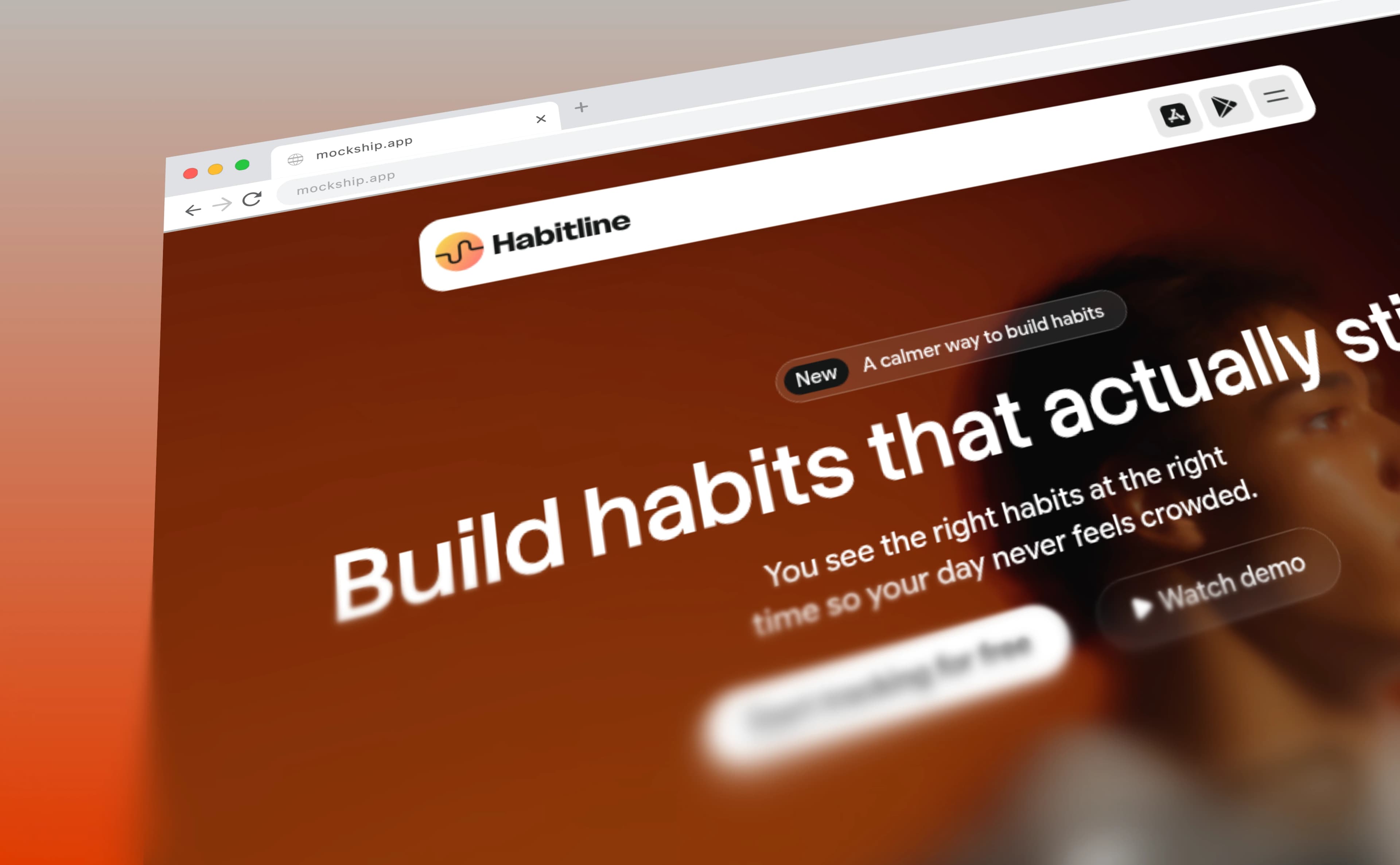
A progressive blur ramps from sharp to soft across the lower third, so the page dissolves instead of stopping at a hard line. The crop stops reading as a crop — the viewer takes in the top, understands the page continues, and nothing looks severed.
- 2
Put a browser frame around it
A browser frame with your own domain in the address bar turns a tall image into a site someone could go and visit. It also gives the top edge a reason to end where it does.
- 3
Let the page pick the backdrop
The suggested gradients and meshes are built from the colours already in your screenshot, so the background agrees with the page instead of competing with it.
Then set the canvas for wherever it is going and export. PNG and JPEG at HD are free with no watermark and no signup; 4K and 6K are there when the shot is going on a landing page of your own and needs to survive a retina display.
One judgement call worth making early: if the part you actually want people to see is the hero section, crop to it and fade below. A full page shown small says nothing. Half a page shown large says one thing clearly. And when the whole page really does need to be read, split it into a carousel instead — three panels at a readable size beat one strip nobody can make out.
Open the full-page layoutTags
Share
More from the blog

How to Add a Progressive Blur to a Website Screenshot
The gradient blur that fades a long page into the background — what it is for, and the four sliders that control it.
How to Add a Browser Frame to a Screenshot
The window chrome that turns a flat capture into a website — with your own domain in the address bar and your favicon on the tab.

How to Create Beautiful Website Screenshots
What separates a capture that looks like evidence from one that looks designed — the frame, the backdrop, the shadow and the size you export at.