How to Add a Browser Frame to a Screenshot
The window chrome that turns a flat capture into a website — with your own domain in the address bar and your favicon on the tab.
2 min read
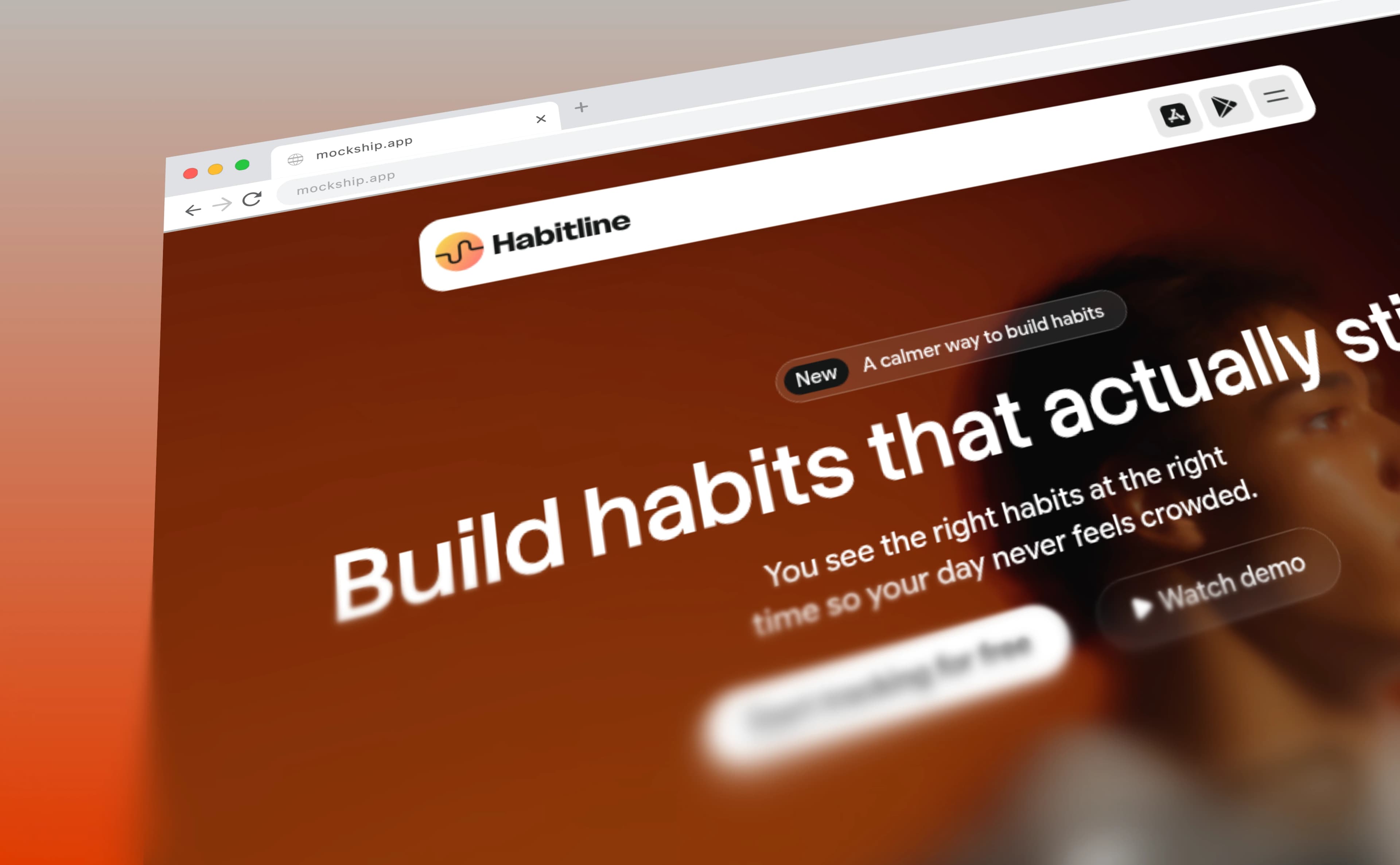
A screenshot of a website without a browser around it is just a picture of a layout. Add the window chrome and the same image becomes a site — something that exists at an address, that someone could go and visit. It is the cheapest credibility you can add to a product shot.
Building one
- 1
Capture at a sensible width
1440 pixels wide is the safe default — wide enough to look like a desktop, narrow enough that text survives being scaled down for a feed. Hide your bookmarks bar and dismiss the cookie banner first.
- 2
Drop it in and choose the browser frame
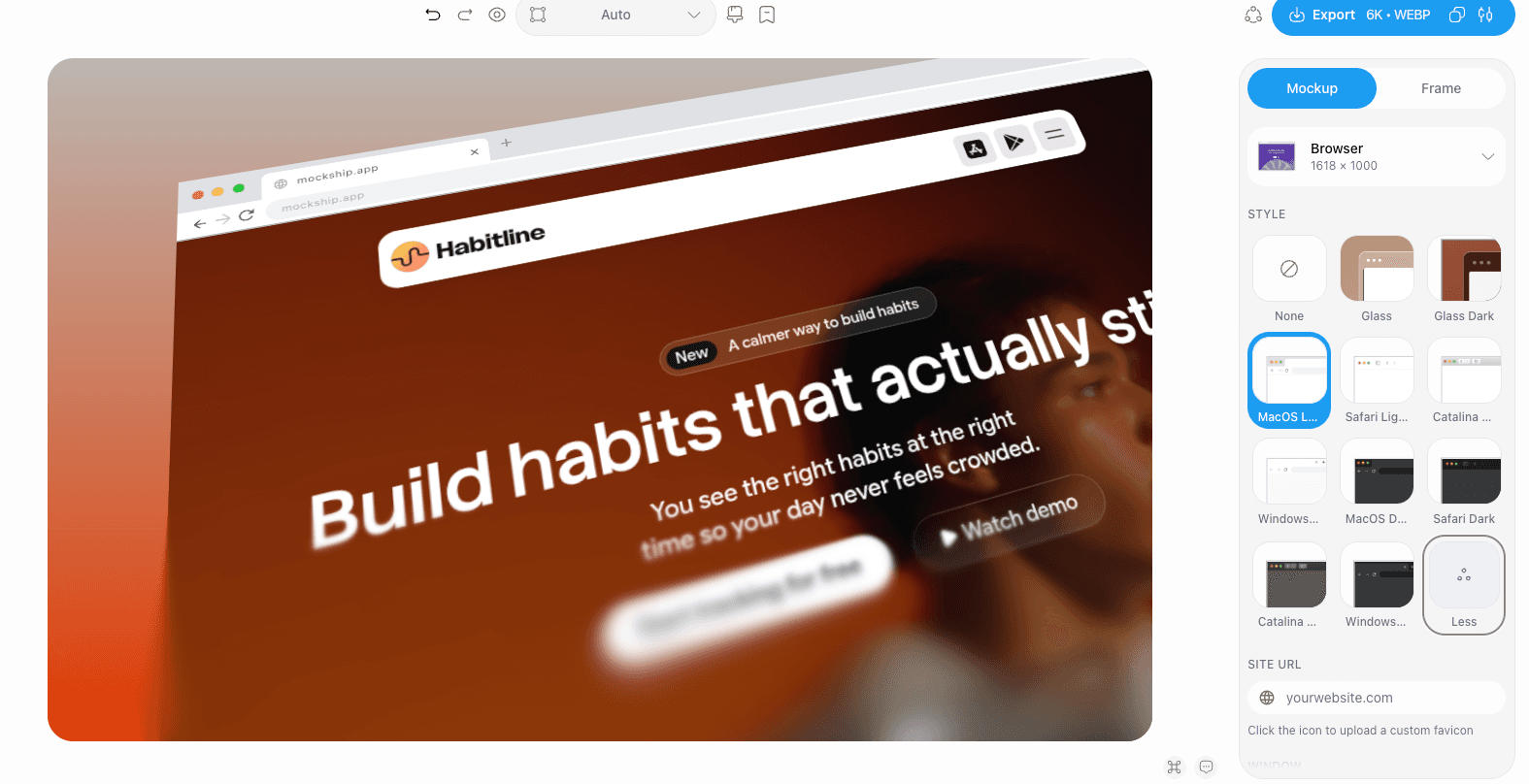
The screenshot is fitted into the window automatically. Pick the window style that matches the audience you are showing it to.
- 3
Type your real domain
This is the detail that does the work. An address bar reading your actual domain sells the shot; a placeholder URL, or an empty bar, undoes it. Your favicon is looked up from the domain and lands on the tab, or you can upload your own.
- 4
Pick an angle, or stay straight on
Straight on is clearest and always reads at thumbnail size. A slight lean or rotation adds depth when the shot is the hero of a page rather than a feed post.
- 5
Backdrop, shadow, export
Let the suggested gradients pull their colours from the screenshot, add a large faint shadow so the window rests on something, then export. PNG and JPEG at HD are free with no watermark.
Small things that give it away
A mismatched capture width
A narrow capture stretched into a wide window makes the text fat and soft. Recapture at the right width rather than scaling.
The wrong light mode
A dark window around a light page, or the reverse, reads as a mistake. Match the chrome to the screenshot inside it.
Tabs you forgot about
Personal bookmarks, a dozen open tabs and a notification badge all pull attention away from the page you are showing.
For a page that runs longer than one screen, capture the whole thing and use the full-page layout instead — the browser frame still goes around it.
The frame is only one of the choices that separate a plain capture from a beautiful website screenshot. The backdrop, the shadow and the export size do the rest.
Add a browser frameTags
Share
More from the blog

How to Take a Full Page Screenshot That Looks Good
Every browser can capture a whole page without an extension. Here is how, and how to frame the tall image you end up with.

How to Add a Progressive Blur to a Website Screenshot
The gradient blur that fades a long page into the background — what it is for, and the four sliders that control it.

How to Create Beautiful Website Screenshots
What separates a capture that looks like evidence from one that looks designed — the frame, the backdrop, the shadow and the size you export at.