Make a MacBook Mockup Online for Free
Drop a screenshot of your website or app into a real MacBook Pro frame, pick a backdrop and export a sharp image in under a minute. No Photoshop, no signup, no watermark.
4 min read · Published
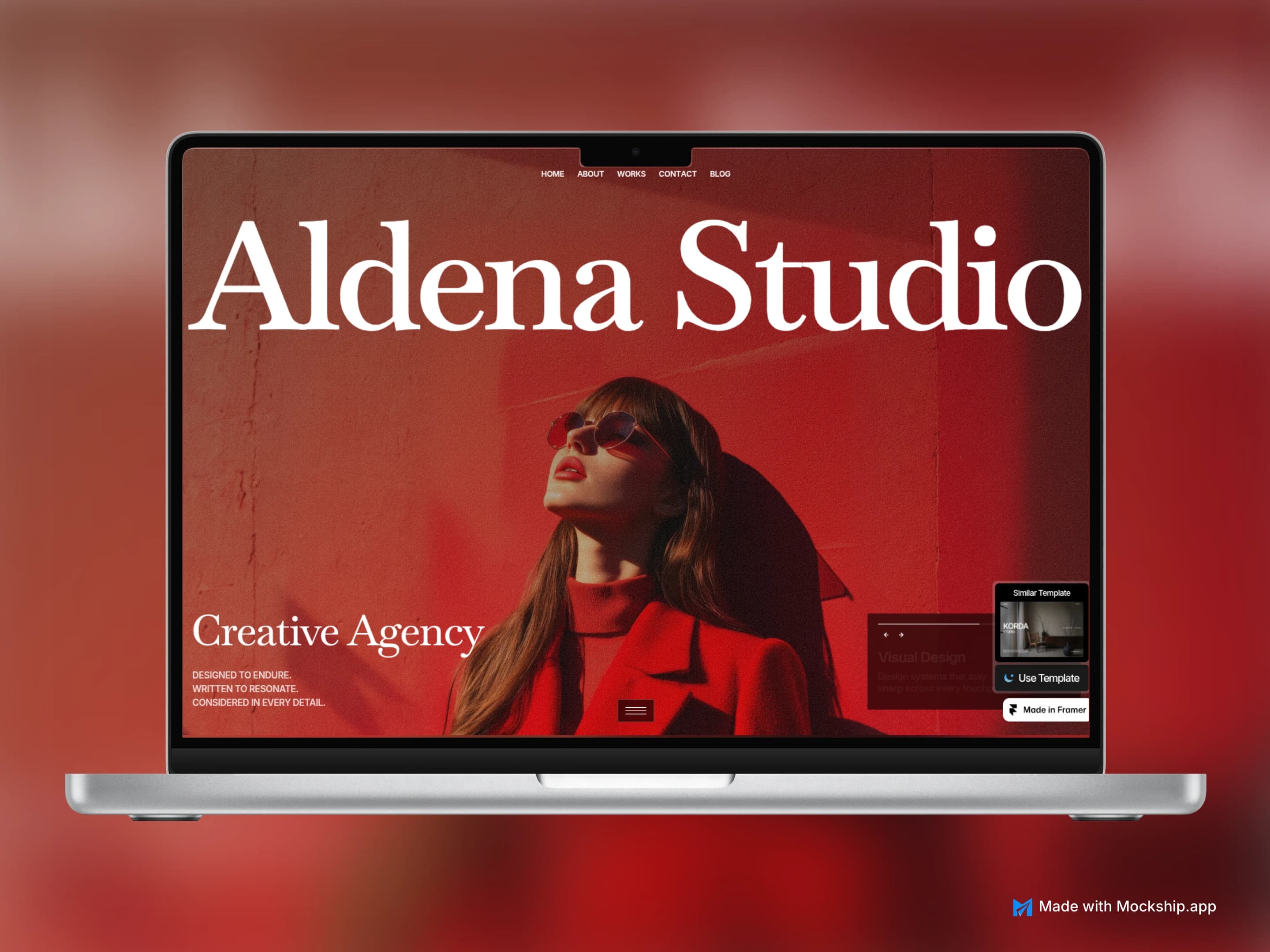
A website screenshot on its own is a flat rectangle. Put the same screenshot on a MacBook and it becomes a product someone is using, on a real laptop, on a real desk. That small change is why MacBook mockups sit at the top of so many landing pages, launch posts and portfolios.
You do not need Photoshop or a paid template pack to make one. This guide shows how to make a MacBook mockup online for free, which MacBook to pick, what size your screenshot should be, and the small details that make it look real.
How to make a MacBook mockup online, free
- 1
Open a MacBook mockup
Start with the MacBook Pro 16 mockup, the MacBook Pro 14 mockup or the MacBook Pro 13 mockup. They all open in the same editor, and you can switch models later without losing your work.
- 2
Capture your screenshot at a laptop size
Open your site or app in a browser window about 1440 to 1512 pixels wide. Hide the bookmarks bar, close the cookie banner and log in with clean demo data, so nothing personal ends up on the screen.
- 3
Drop the screenshot onto the MacBook
Drag the file onto the laptop screen, paste it, or click the screen to upload. It snaps into the display with the right corners and fills it from the top.
- 4
Pick a colour and a layout
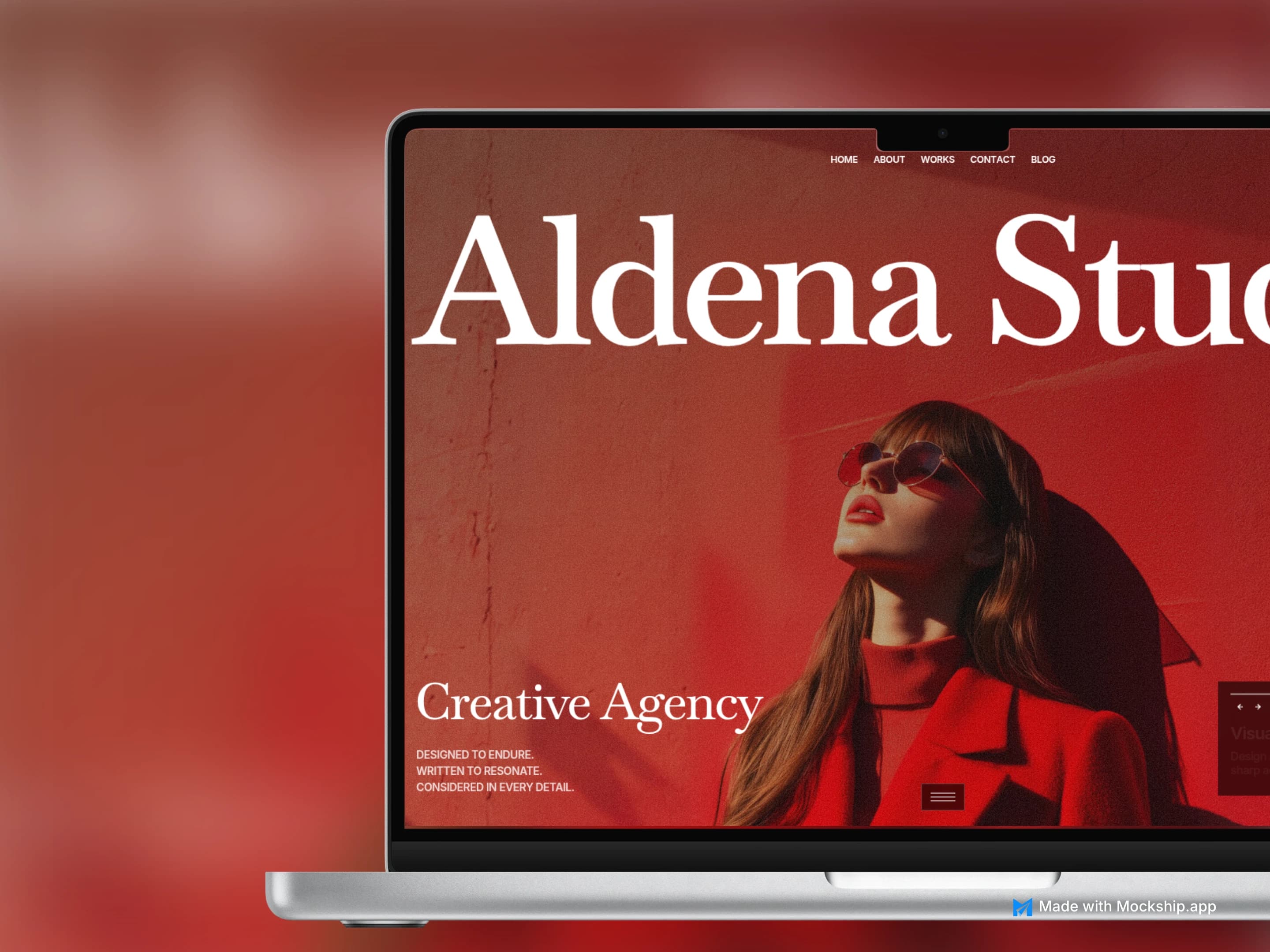
Choose the finish, such as Silver, Space Gray or Sky Blue on the MacBook Pro 16, then a layout. Straight on is clearest at small sizes; Zoom Right or Zoom Left adds depth for a hero image.
- 5
Add a backdrop and export
Choose a gradient, mesh or photo behind the laptop and a soft shadow so it sits on something. Export as PNG or JPEG in HD for free, with no watermark.
Which MacBook mockup should you use?
All three frames are free. Pick the one that suits the layout you are showing and where the image is going.
| MacBook | Colours | Screen shape | Best for |
|---|---|---|---|
| MacBook Pro 16 | Silver, Space Gray, Sky Blue | About 1.55 : 1 | Dashboards, data-heavy web apps and big hero images |
| MacBook Pro 14 | Silver | About 1.54 : 1 | Most websites, SaaS products and landing pages |
| MacBook Pro 13 | Space Gray | 16 : 10 | Simpler layouts, blogs, docs and portfolio pieces |
What size should your screenshot be?
The closer your screenshot is to the shape of the MacBook screen, the less gets trimmed. Nothing is ever stretched, so a mismatched capture only loses a strip at the bottom or the sides.
| MacBook | Good capture size | Sharper (2x) |
|---|---|---|
| MacBook Pro 16 | 1512 × 976 | 3024 × 1952 |
| MacBook Pro 14 | 1512 × 982 | 3024 × 1964 |
| MacBook Pro 13 | 1440 × 900 | 2880 × 1800 |
If you are on a Mac with a Retina screen, a normal screenshot is already 2x. On other screens, zoom the browser to 200% or use your browser's device toolbar to capture at double size, so text stays crisp after the image is scaled down.
Make your MacBook mockup look real
Show real content
Placeholder text and empty charts give a mockup away instantly. Fill the screen with believable demo data, a real headline and your actual product.
Match the colour to the page
Space Gray suits dark interfaces and Silver suits light ones. The Sky Blue MacBook Pro 16 adds colour when the page itself is quite plain.
Let the backdrop do the framing
A soft gradient that picks up a colour from your screenshot ties the whole image together. Mockship suggests backdrops from the colours in your screenshot.
Use an angle only for hero images
A tilted MacBook looks great large on a landing page but is harder to read in a small feed preview. Keep it straight on for social posts.
Two screens tell a story
Use the Duo Stage layout to show two MacBooks side by side, for example light and dark mode, or a before and after.
Where to use a MacBook mockup
Landing page hero
Show the product above the fold so visitors understand it before they read a word.
Product Hunt and launch posts
Gallery images are judged in a second, and a MacBook on a bold backdrop stands out next to plain screenshots.
X and LinkedIn
Feature announcements read better on a laptop. Use a 16:9 canvas for X and 1200 × 627 for LinkedIn so nothing is cropped.
Portfolios and case studies
A MacBook frame makes client work look finished, and keeps every project in your portfolio consistent.
Pitch decks
Drop the exported PNG straight onto a slide. A backdrop that matches the slide colour looks cleanest.
Need a different screen? The same editor has iPhone, iPad, Android and iMac frames, all listed on the device mockups page.
Ready to try it? Open the free MacBook mockup, drop in your screenshot and export in under a minute.
Frequently asked questions
Related tools and use cases
Tags
Share
More from the blog
6 Best Free BrandBird Alternatives (No Watermark) – 2026
BrandBird's free plan stamps a watermark on your exports. These six tools let you make polished screenshots and mockups for free, checked in October 2026.
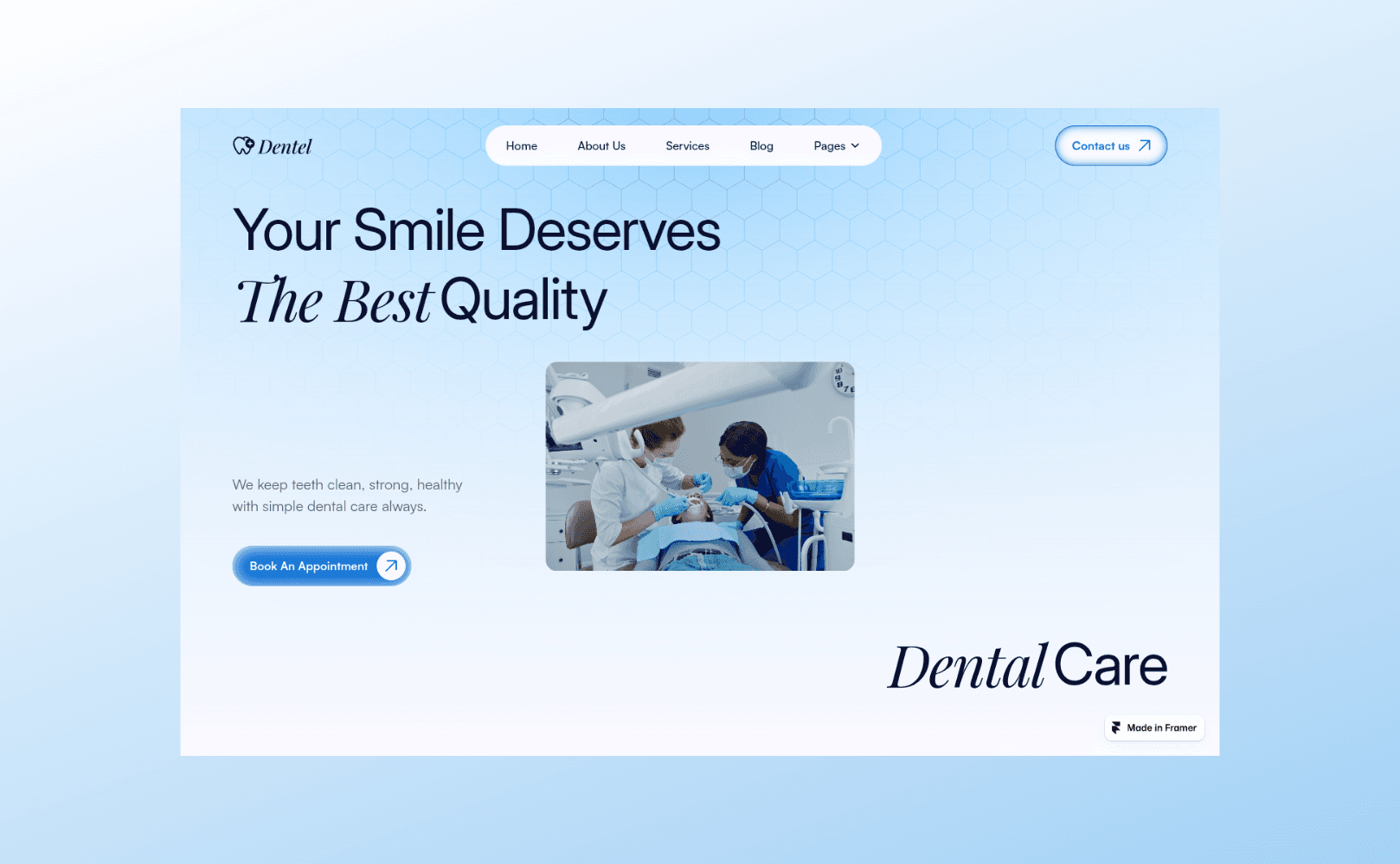
Screenshot Beautifier: How to Make Beautiful Screenshots for Free in 2026
Add a background, a frame and a shadow to any screenshot in your browser, then export it at HD with no watermark. Here is how, and what to choose at each step.
iPhone 18 Pro and Pro Max Mockups for Your App Screenshots
Mockship now has the iPhone 18 Pro and iPhone 18 Pro Max, in four finishes, so your mobile screenshots can sit in this year's phone the day you need them.