Screenshot Beautifier: How to Make Beautiful Screenshots for Free in 2026
Add a background, a frame and a shadow to any screenshot in your browser, then export it at HD with no watermark. Here is how, and what to choose at each step.
4 min read
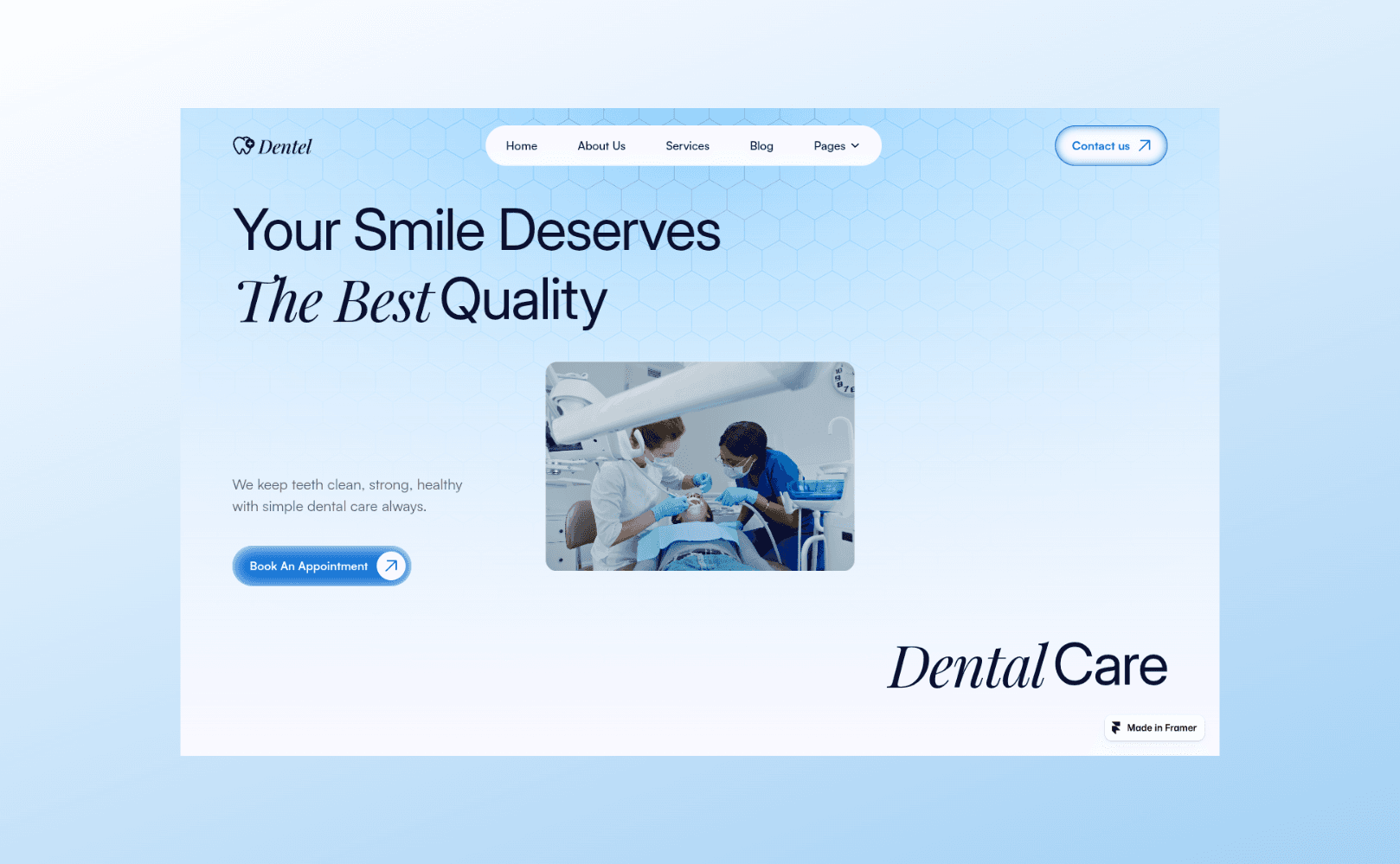
A screenshot beautifier takes a plain capture and gives it the four things it is missing: a background, a frame, a shadow and the right size. Mockship is a free screenshot beautifier that runs in your browser, so a raw screenshot becomes something worth posting in about a minute, with no design tool and nothing to install.
This guide covers what each of those choices does, how to make them, and the small habits that separate a nice screenshot from an amazing one.
What a screenshot beautifier actually does
It puts something behind the screenshot
A background gives the capture an edge and a setting. Without one, a screenshot reads as evidence, a bug report or a receipt, rather than something presented on purpose.
It frames it
A browser window, a phone, a laptop, or a simple card around a bare screenshot. The frame tells the viewer what they are looking at before they read a word.
It adds depth
A soft shadow lifts the screenshot off the background, so the design is clearly the subject and the backdrop is clearly the stage.
It sizes it for where it is going
An X post, an Instagram square or an App Store listing each want a different shape. A beautifier sets the canvas so the platform does not crop it for you.
Beautify a screenshot in four steps
- 1
Drop the screenshot in
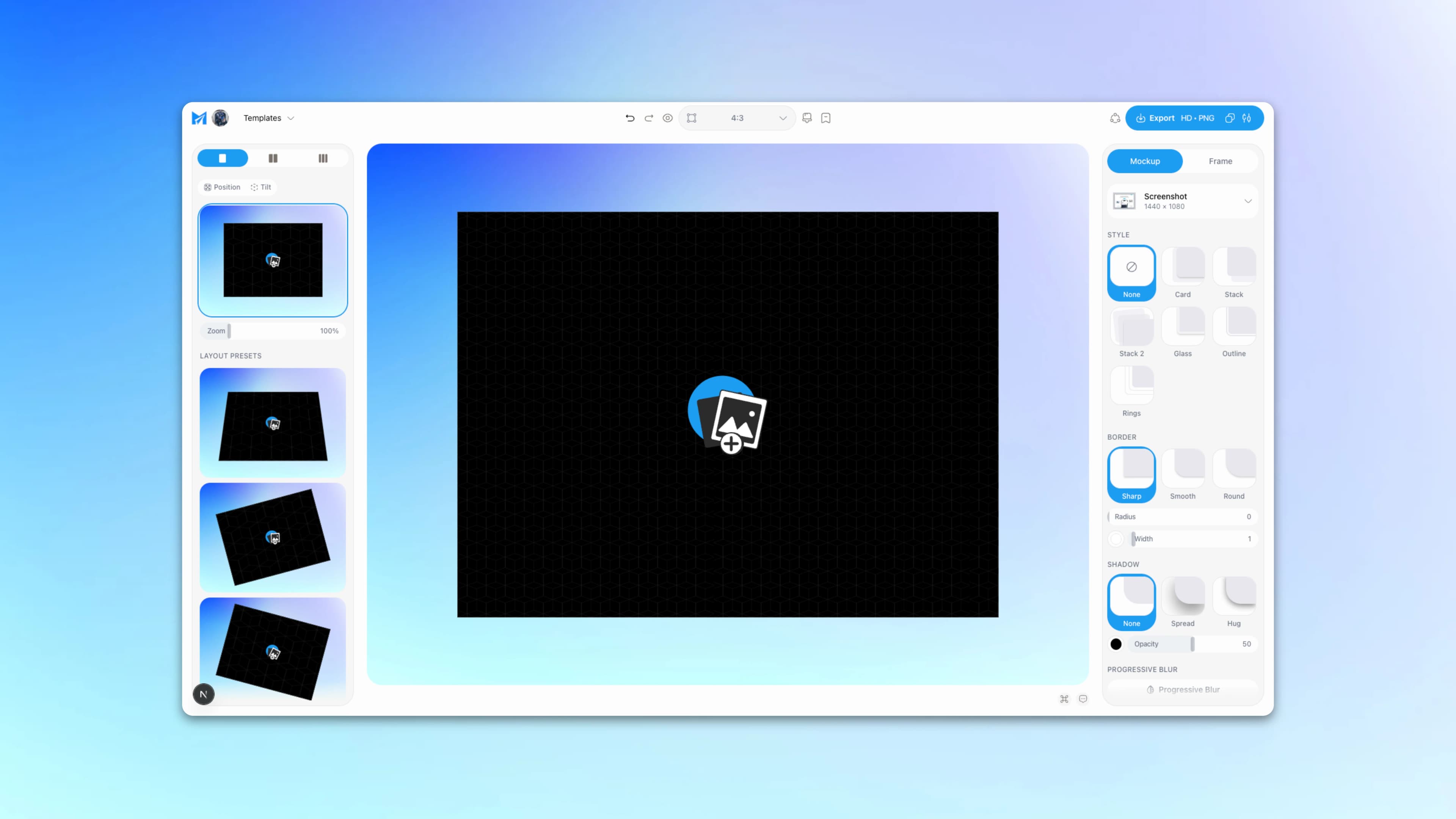
Open the screenshot layout and drag, paste or upload the image. It is fitted to the canvas automatically, at its own proportions.
- 2
Pick a background
Start with the Recommended backdrops. They are built from the colours already in your screenshot, so the background agrees with it. Prefer a set look? The Palettes button has ready-made palettes that generate the same way.
- 3
Frame it and add a shadow
For a bare screenshot, choose a style such as Card, Glass, Stack or Outline, and a corner shape of Sharp, Smooth or Round. For a website, a browser window works better. For an app, put it in one of 22 device frames.
- 4
Set the size and export
Choose a canvas preset for where the image is going, then export PNG or JPEG at HD for free, or copy it straight to your clipboard.
Choosing a screenshot background
The background is the choice people agonise over most, and the rule is simple: it should hold the screenshot, not compete with it. A loud gradient behind a colourful app gives you two things shouting at once.
Built from your colours
The Recommended set reads the palette out of your screenshot and turns it into gradients and meshes. It is the fastest way to a background that looks chosen rather than picked at random.
Soft gradients and meshes
Low-contrast blends work behind almost anything. Keep the strongest colour away from the busiest part of the screenshot.
A solid colour
For documentation, changelogs and anything that will sit next to other screenshots, a flat colour keeps a whole set consistent.
Image backdrops
Nature and texture backdrops are free in full, and every other set has free picks too. Use a photo when the mood matters more than the detail, and blur or tint it so the screenshot still leads.
What makes a screenshot look amazing
Breathing room
Leave space around the screenshot. A capture pressed against the edges of the canvas looks cramped however good the background is.
One focal point
Crop to the part you want people to see. A whole dashboard shown small says nothing; the one chart that matters, shown large, says one thing clearly.
Matching light and dark
A dark app on a pale background, or the reverse, can work, but a dark window around a light page reads as a mistake. Match the frame to the screenshot inside it.
Sharp text
Capture at 2× when you can and export at HD or above. Text is the first thing to go soft, and it is usually what people are meant to read.
A consistent set
For a launch thread or an App Store listing, keep the same backdrop, frame and shadow across every image. Templates help: they fix the canvas, frame and backdrop so only the screenshot changes.
An app or an online screenshot editor?
If you searched for an edit screenshot app, you may not need an app at all. A screenshot editor online does the same job without an install, and works the same on a work laptop you cannot add software to.
Nothing to install
Mockship runs in any modern browser on Mac, Windows or Linux. There is no download, no update and no licence key.
Free, without a watermark
PNG and JPEG export at HD is free, with no watermark and no signup. Nothing is stamped on a free export.
Pro when you need more
4K and 6K export, WebP, public share links and a Brand Kit with your logo and colours. Useful for a landing page or a client deck; not needed for a social post.
Mockship beautifies a screenshot once you have it. To capture a whole website in one image first, use one of the free tools in the full page screenshot guide. For websites in particular, the guide to beautiful website screenshots goes deeper on browser frames and capture width.
Frequently asked questions
Tags
Share
More from the blog
How to Create Beautiful Website Screenshots for Free
What separates a capture that looks like evidence from one that looks designed — the frame, the backdrop, the shadow and the size you export at.
6 Best Free BrandBird Alternatives (No Watermark) – 2026
BrandBird's free plan stamps a watermark on your exports. These six tools let you make polished screenshots and mockups for free, checked in October 2026.
How to Add a Browser Frame to a Screenshot
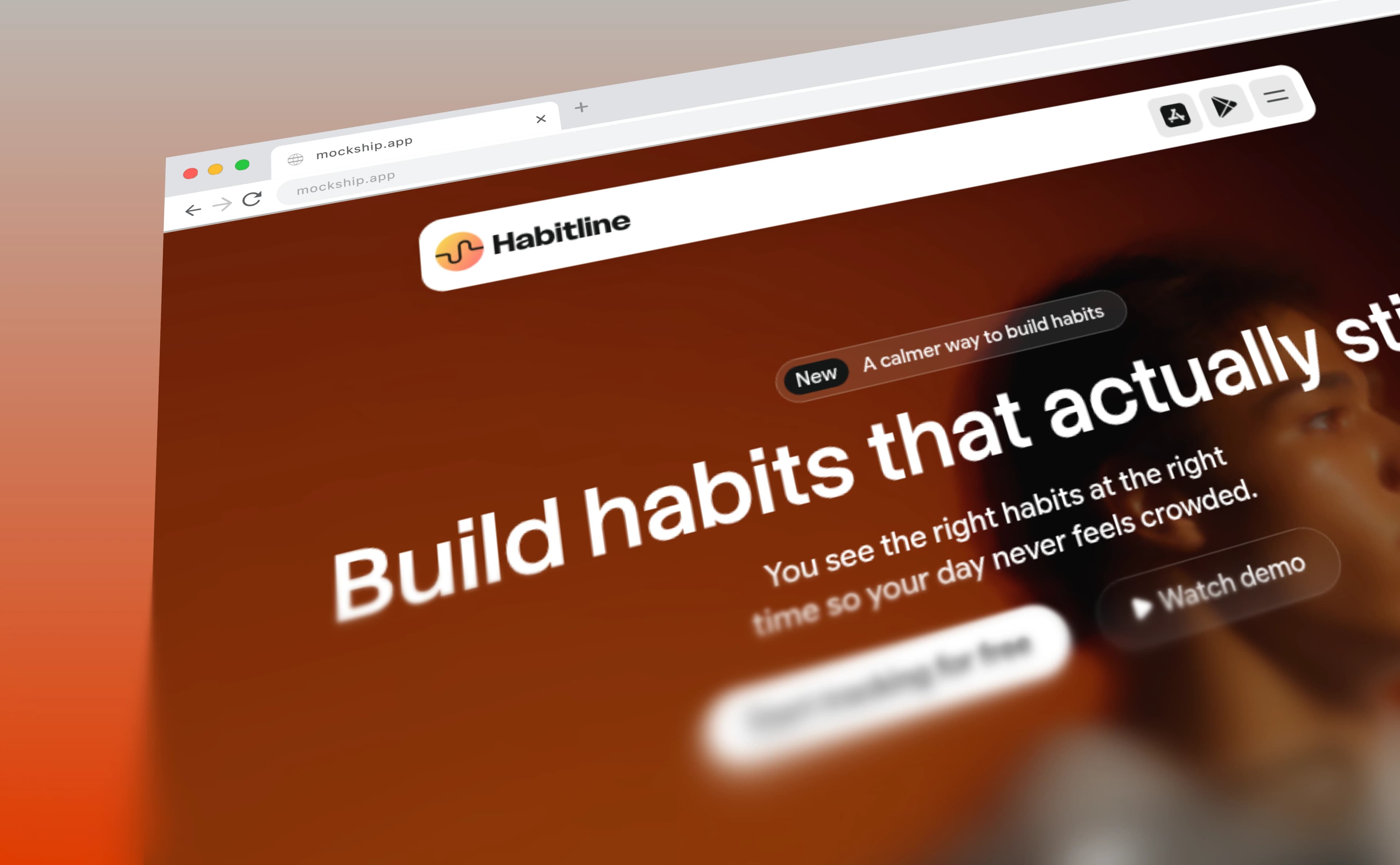
The window chrome that turns a flat capture into a website — with your own domain in the address bar and your favicon on the tab.