Framer Website Mockup Generator: Showcase Your Framer Site
Turn a published Framer site into polished showcase images for your template listing, portfolio or launch post. Browser windows, MacBook frames and full-page layouts, free and with no watermark.
4 min read · Published
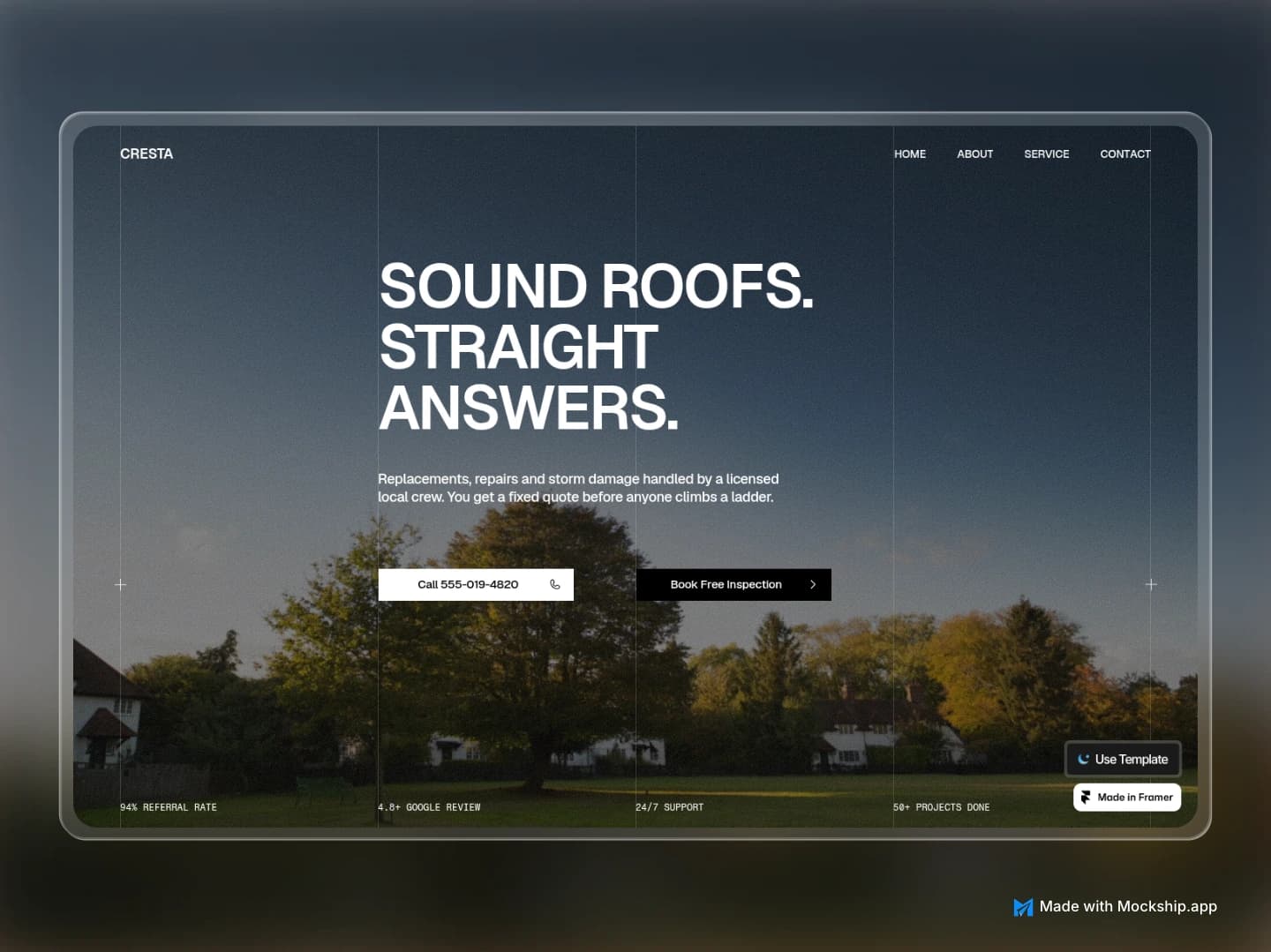
Framer makes it quick to build and publish a beautiful site. Showing that site off is a different job. A template listing, a portfolio entry or a launch post needs an image that sells the design at a glance, and a raw screenshot rarely does that on its own.
A website mockup generator puts the screenshot inside a browser window or on a device, sets it on a backdrop and exports it ready to post. This guide shows how to make mockups of a Framer website for free, which mockup suits which use, and how to show a whole long page instead of only the hero.
How to make a mockup of your Framer website
- 1
Publish or preview the site
Open the published site on its domain, or the preview, in a desktop browser. Wait for animations and images to finish loading, and scroll once so any scroll-triggered sections have appeared.
- 2
Take the screenshot
For the hero, set the browser window to about 1440 pixels wide and capture the visible area. For the whole page, use a full-page screenshot extension so every section ends up in one tall image.
- 3
Pick a mockup
Drop the screenshot into a browser window, a MacBook or the full-page layout. Type your real domain into the browser address bar and the favicon is looked up and placed on the tab.
- 4
Set the canvas size
Choose the size for where the image is going: 4:3 for a template gallery or Dribbble, 16:9 for X, 1200 × 627 for LinkedIn, or Open Graph for a link preview.
- 5
Add a backdrop and export
Pick a gradient, mesh or photo that suits the site's colours, add a soft shadow, and export a PNG or JPEG in HD for free, with no watermark.
Which website mockup suits which Framer use
| You are making | Use | Why |
|---|---|---|
| A template listing thumbnail | Full-page layout with two or three pages | Shows several pages and sections of the template in one image |
| A portfolio or case study image | MacBook mockup | Reads as a finished, real product on a real device |
| A launch post on X or Product Hunt | Browser window with your domain | The address bar shows where to find the site |
| The mobile version of the site | iPhone mockup | Proves the layout works on a phone, not only on desktop |
Show the whole Framer page, not just the hero
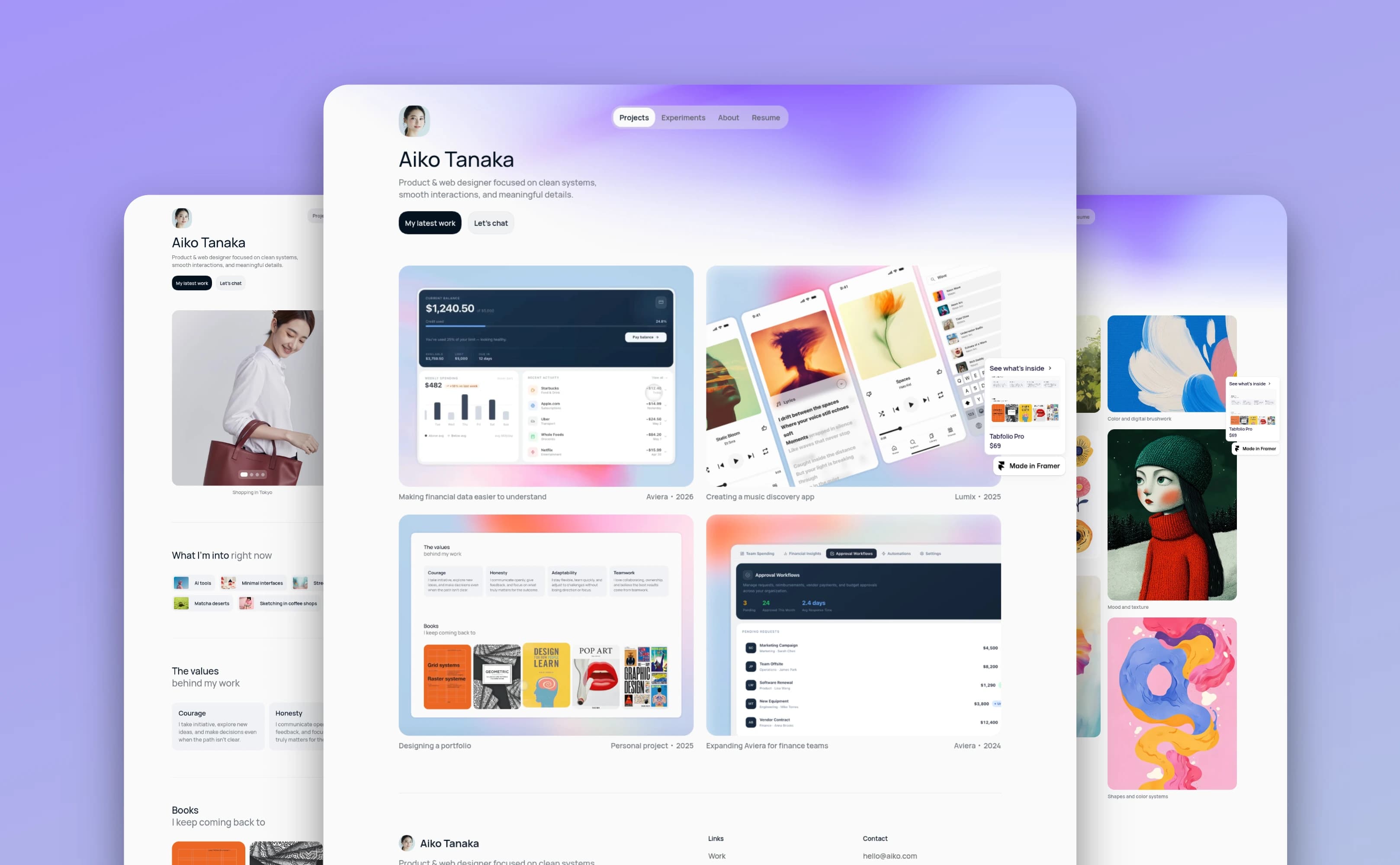
Most Framer templates are long, and the hero alone undersells them. The Full Screenshot layout takes up to three full-page screenshots side by side, so you can show the home page, an inner page and the pricing page in a single image.
Scroll each page to the best part
The Y slider moves a page as far down as it is long, right to the footer, so each column can show a different section.
Pick a three-page layout
Trio overlaps the pages with the middle one in front, Trio Scroll shows the middle page from the top and the side pages further down, and Trio Cascade stacks them in a soft cascade.
Short pages stay in view
A page that is shorter than the layout expects stops at its own end, so nothing slides off the canvas.
What makes the best website mockup generator online
Whichever tool you use, these are the things that decide whether the result looks professional or like a quick screenshot.
Real browser and device frames
Light and dark windows, and laptop and phone frames with the right screen proportions, so the screenshot is never stretched.
Full-page support
Long pages should stay sharp and scroll to any section, not get squashed into one screen.
Your real domain and favicon
An address bar showing your actual URL is the detail that makes a website mockup believable.
Sharp export at the sizes you need
Presets for template galleries and social posts save guessing, and high-resolution export keeps small text readable.
No watermark on free exports
A free plan that stamps a logo on your image is not really free. Mockship's free HD export has no watermark.
Tips for Framer site mockups
Wait for the animations
Framer sites often fade sections in on scroll. Scroll down and back up before you capture, so nothing is caught half-faded.
Decide on floating badges
Published sites can show floating badges, such as the Made in Framer badge. Keep them if you are selling a template, or capture a version without them for a client portfolio.
Match the window to the site
A dark site looks best in a dark browser window and a light site in a light one.
Keep the same backdrop across a set
When you post several images of one template, use the same backdrop and layout so they read as one collection.
For a laptop shot of your site, the MacBook mockup guide walks through picking a model and the right screenshot size.
Mockship is an independent tool and isn't affiliated with Framer. It works with any website, built in Framer or anything else.
Frequently asked questions
Related tools and use cases
Tags
Share
More from the blog
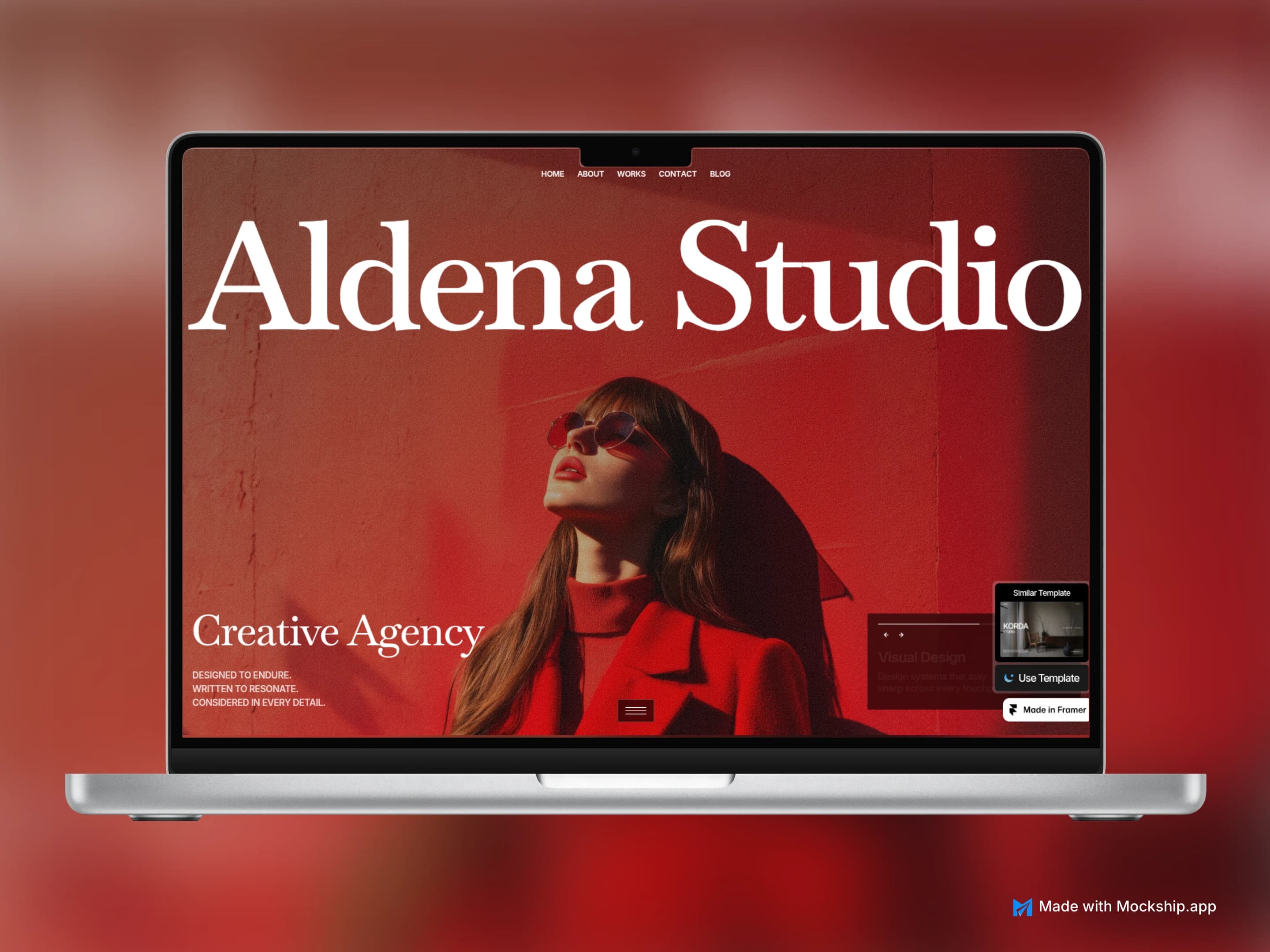
Make a MacBook Mockup Online for Free
Drop a screenshot of your website or app into a real MacBook Pro frame, pick a backdrop and export a sharp image in under a minute. No Photoshop, no signup, no watermark.
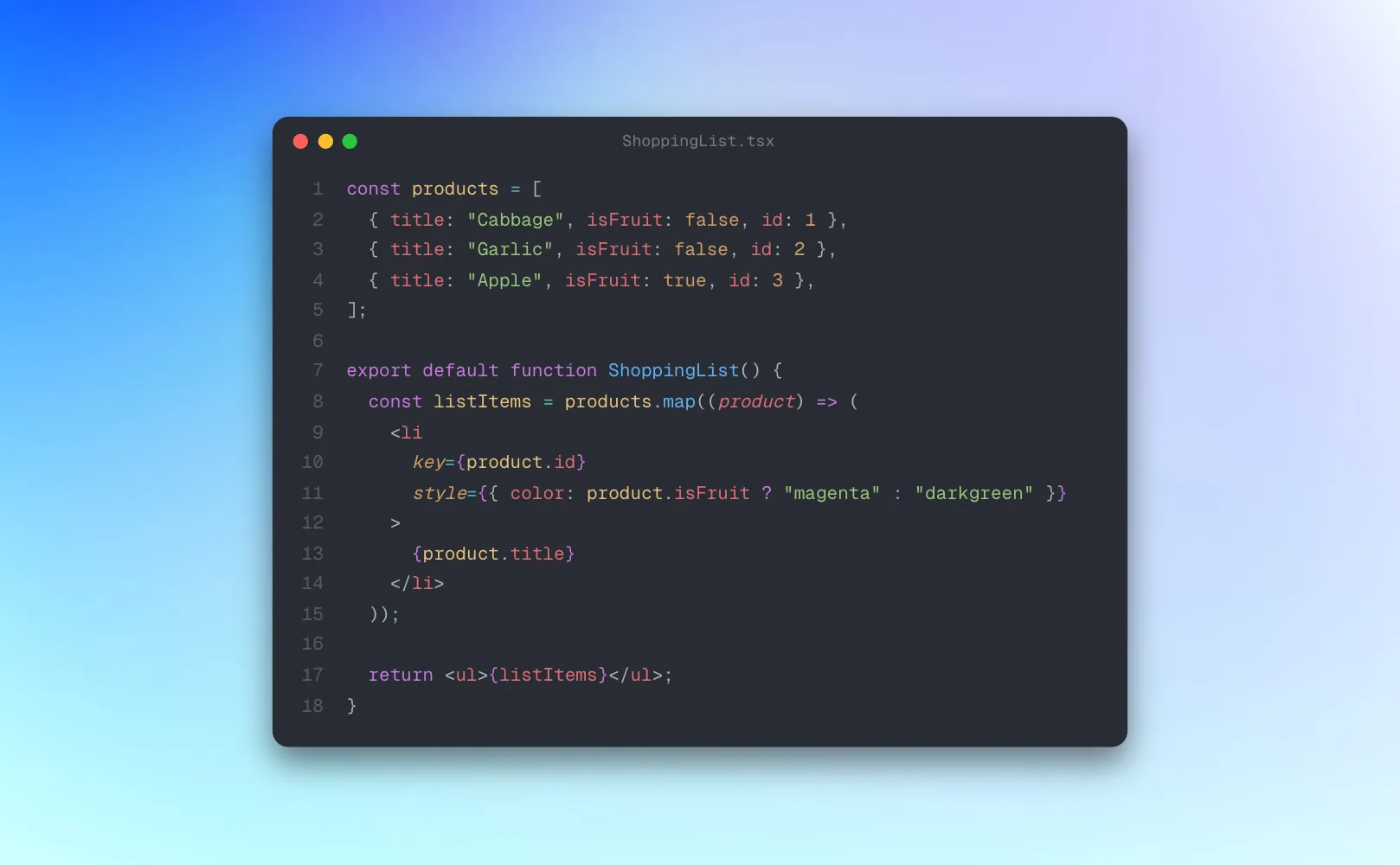
Code to Image: Beautiful Code Screenshots
Paste a snippet, pick the language and a syntax theme, auto-format it, and export a sharp code screenshot that looks like it came out of a real editor.
4 Best Free TwitterShots Alternatives (2026): Tweet to Image Tools
TwitterShots' free tool stops at 10 images a month. Mockship, PostSpark, TweetPik and 10015 Tools turn a tweet link into a clean image without that cap, checked in October 2026.