Code to Image: Beautiful Code Screenshots
Paste a snippet, pick the language and a syntax theme, auto-format it, and export a sharp code screenshot that looks like it came out of a real editor.
4 min read · Published
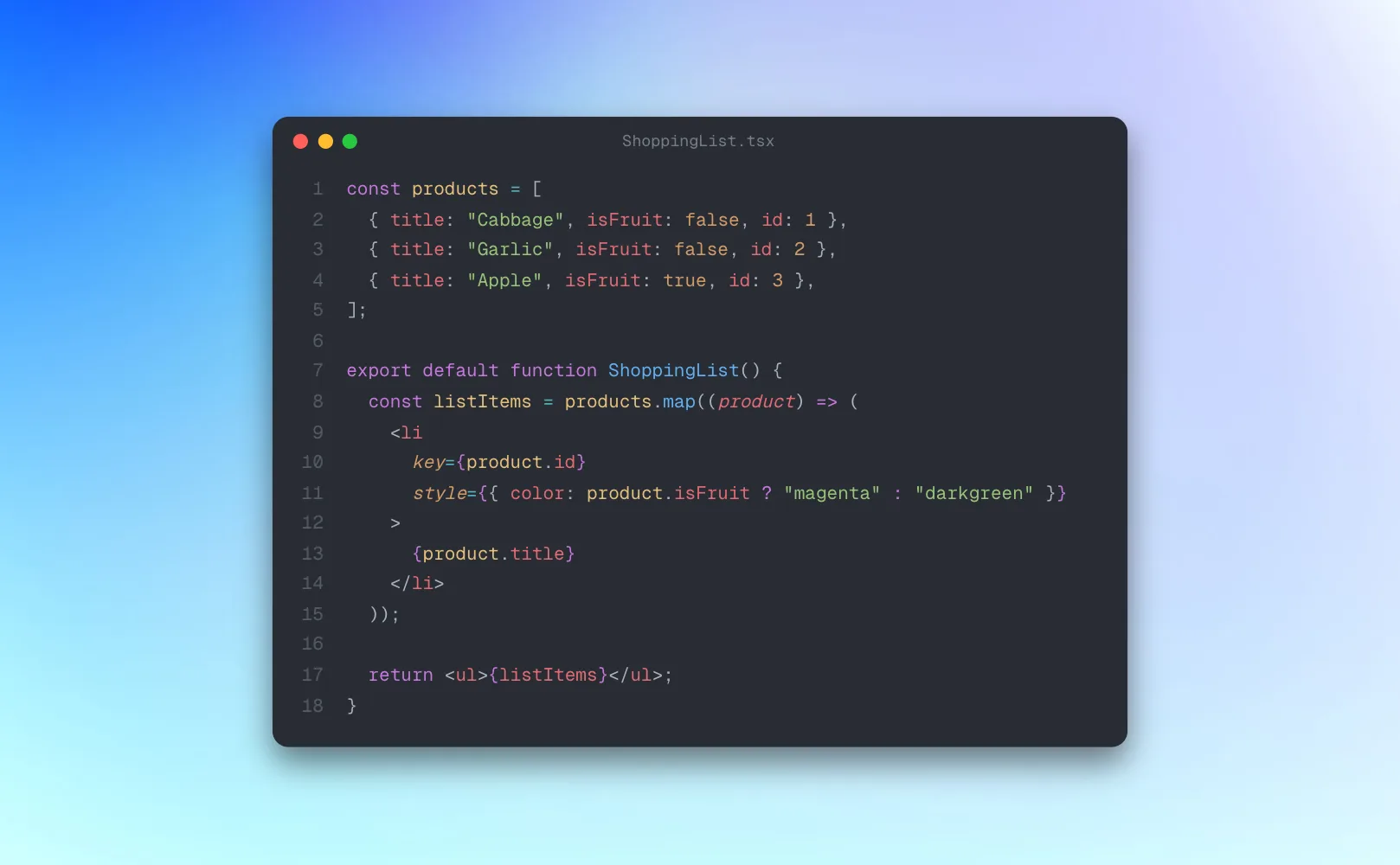
Sharing code as text is the right call in a pull request. Everywhere else, on X, LinkedIn, a slide or a blog post, a code screenshot gets read and a block of raw text gets scrolled past. The trouble is that a screenshot of your editor carries everything around the code with it: the file tree, the tabs, the minimap, the squiggly lint warnings, and whatever font size you happened to be working at.
A code to image tool fixes that by turning the code snippet into an image from scratch. You paste the code, it is coloured with a real syntax theme, set in a clean window on a backdrop, and exported at whatever size the post needs. Nothing is a crop of your screen, so the text stays sharp and nothing private sneaks into the frame.
How to turn a code snippet into an image
- 1
Open the code to image tool and paste your snippet
Click the code card and paste, or type over the sample. The card grows to fit your code, and the colours update as you type.
- 2
Pick the language
Use the dropdown above the canvas, or start typing to search it. There are 25 to choose from, including TypeScript, JavaScript, Python, Go, Rust, Java, Swift, Kotlin, C#, PHP, SQL and YAML. The file name in the window bar follows along, so switching to Python turns App.tsx into App.py.
- 3
Auto-format it
Click the wand and messy code is cleaned up in place. JavaScript, TypeScript, JSX, CSS, SCSS, HTML, JSON, Markdown, YAML and GraphQL are fully reformatted; every other language has its indentation and spacing tidied.
- 4
Choose a syntax theme
The right panel splits 18 themes into Dark and Light. Hover over one to preview it on your actual code before you commit to it: One Dark, GitHub, Dracula, Tokyo Night, Nord, Catppuccin, Rosé Pine, Monokai and more.
- 5
Set the backdrop and export
Pick a gradient, mesh or photo behind the window, add a soft shadow, and export a PNG or JPEG. HD export is free with no watermark.
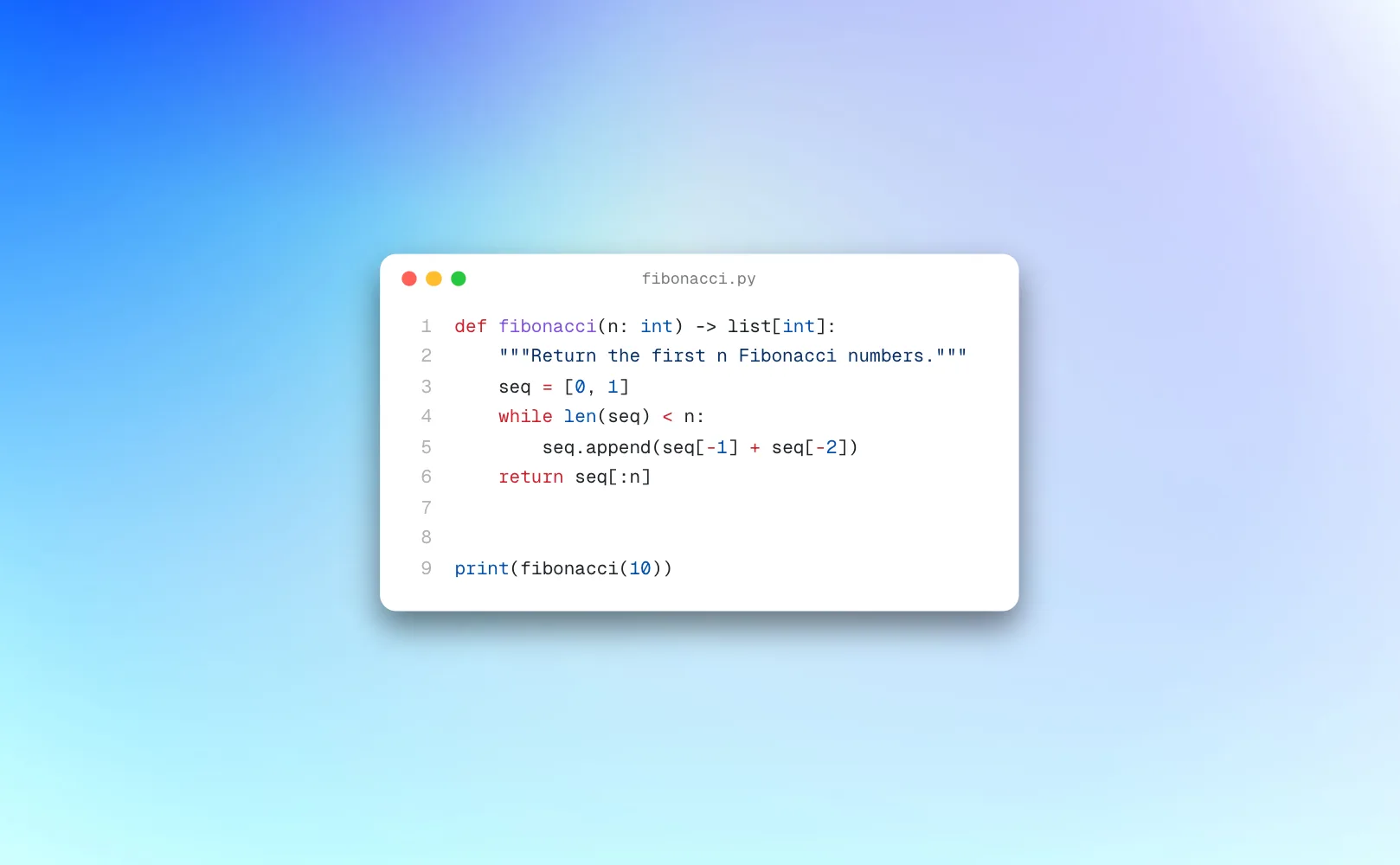
What makes a code screenshot look good
Show less code than you think
Five to fifteen lines is the sweet spot. One function, one idea. If it needs a scrollbar in your editor, it is too long for an image people will glance at in a feed.
Let the window breathe
Leave space between the code window and the edge of the canvas. That margin is what makes it look designed rather than grabbed. The Scale control shrinks or grows the whole window without touching the text proportions.
Match the theme to the backdrop
A dark theme on a light gradient is the easiest contrast to read. Light themes work best on deeper, more saturated backgrounds, or for slides that sit on a white page.
Keep the file name honest
The name in the window bar is editable. A real file name like useAuth.ts tells people what they are looking at before they read a single line.
Format before you share
Inconsistent indentation is the first thing other developers notice. One click on the wand fixes it.
How to take a screenshot of code in VS Code
You can capture your editor with the system screenshot shortcut, but you end up cropping around tabs, gutters and panels, and the result is only as sharp as your screen. The cleaner way is to copy the snippet out of VS Code or any other editor, paste it into the code to image tool, and export it. You get the same colours you are used to, with a real theme like One Dark or GitHub, at a resolution your screen could never capture.
Sizes for sharing code on X, LinkedIn and slides
| Where it goes | Canvas size | Tip |
|---|---|---|
| X post | 1600 × 900 | Dark themes stand out in both light and dark timelines |
| LinkedIn post | 1200 × 627 | Keep it short; most people read it on a phone |
| 1080 × 1080 | Square suits short snippets best | |
| Blog or docs cover | 1200 × 630 | Doubles as the link preview image |
| Slides | 1600 × 900 | Use a larger font so the back row can read it |
Long lines and long files are handled for you. If the code would run past the edge of the canvas, the text shrinks just enough to fit, and grows back when you trim it, so nothing gets cut off in the export.
A Carbon and ray.so alternative
Carbon and ray.so are the two names most people find first when they search for a code screenshot generator, and both make good images. Mockship's code to image tool does the same job inside a full screenshot editor, so your code card gets the same backdrops, shadows, borders and export sizes as everything else you make there. If you already frame your app screenshots or browser mockups in Mockship, your code images can match them.
Sharing a post instead of a snippet? The same studio turns a tweet into an image from its link.
Frequently asked questions
Related tools and use cases
Tags
Share
More from the blog
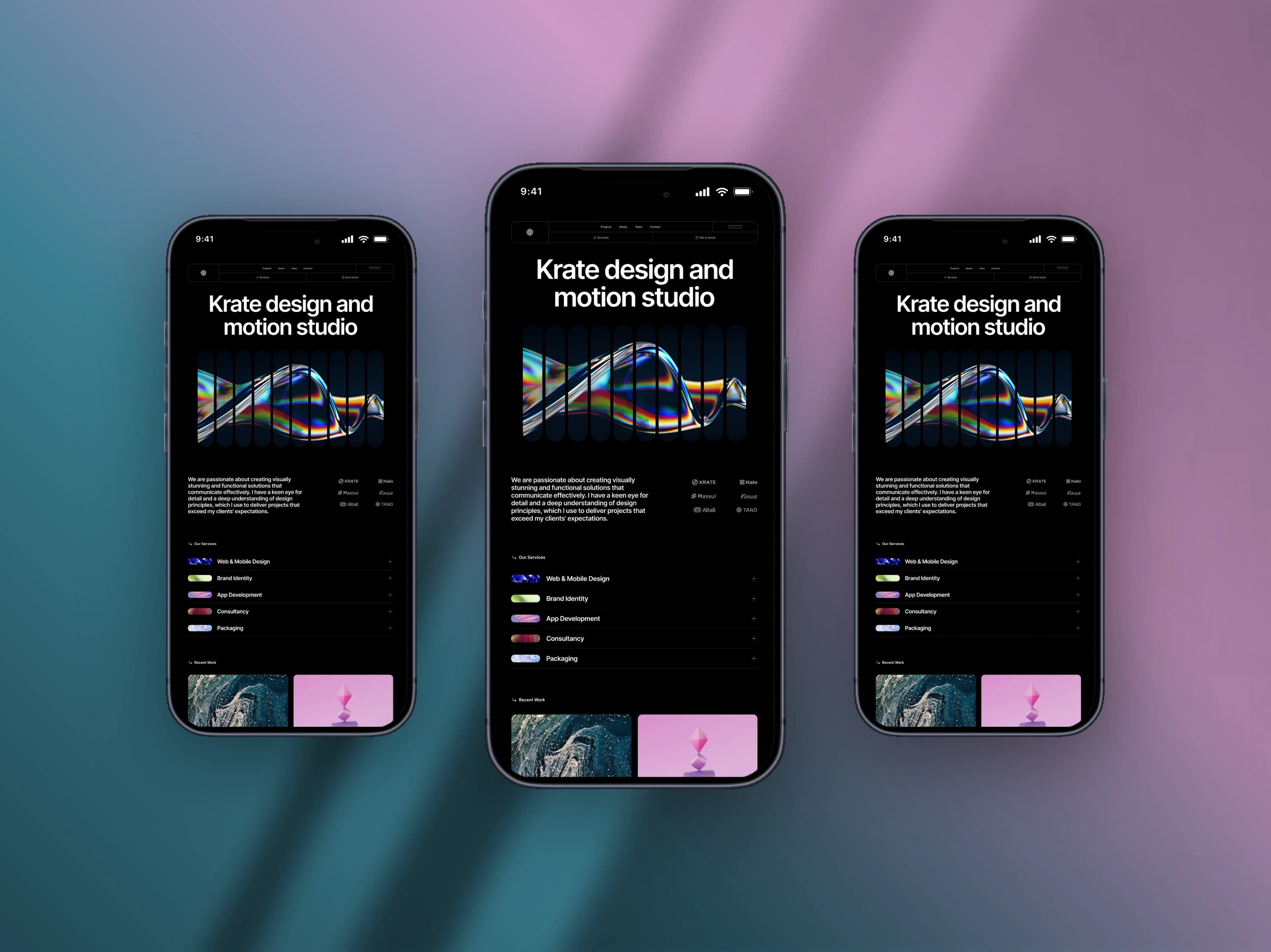
How to Create a Mobile Mockup for Free
Turn a plain phone screenshot into a post worth showing — a real device frame, a backdrop that matches, and the right canvas for the feed.
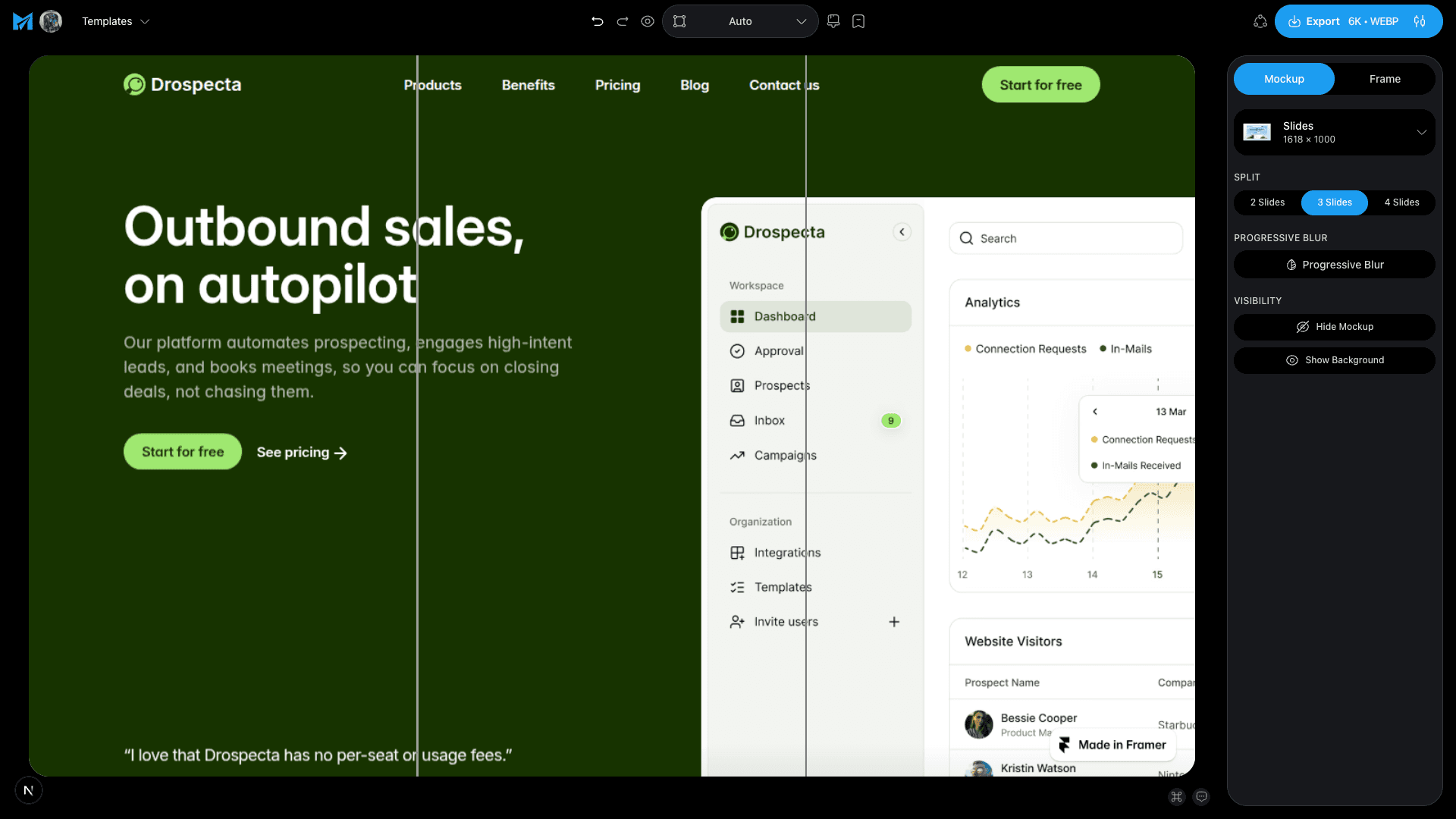
How to Create an X (Twitter) Carousel for Free
Design one wide picture, cut it into slides, and let the swipe reveal it — the trick behind carousels that people actually finish.
4 Best Free TwitterShots Alternatives (2026): Tweet to Image Tools
TwitterShots' free tool stops at 10 images a month. Mockship, PostSpark, TweetPik and 10015 Tools turn a tweet link into a clean image without that cap, checked in October 2026.