iPhone Screenshot Mockup Generator: Every Model, Free Online
Put any app screenshot in a real iPhone frame, from the iPhone 15 to the iPhone 18 Pro Max, with the status bar, finish, background and shadow you want. Free online, no watermark.
4 min read · Published
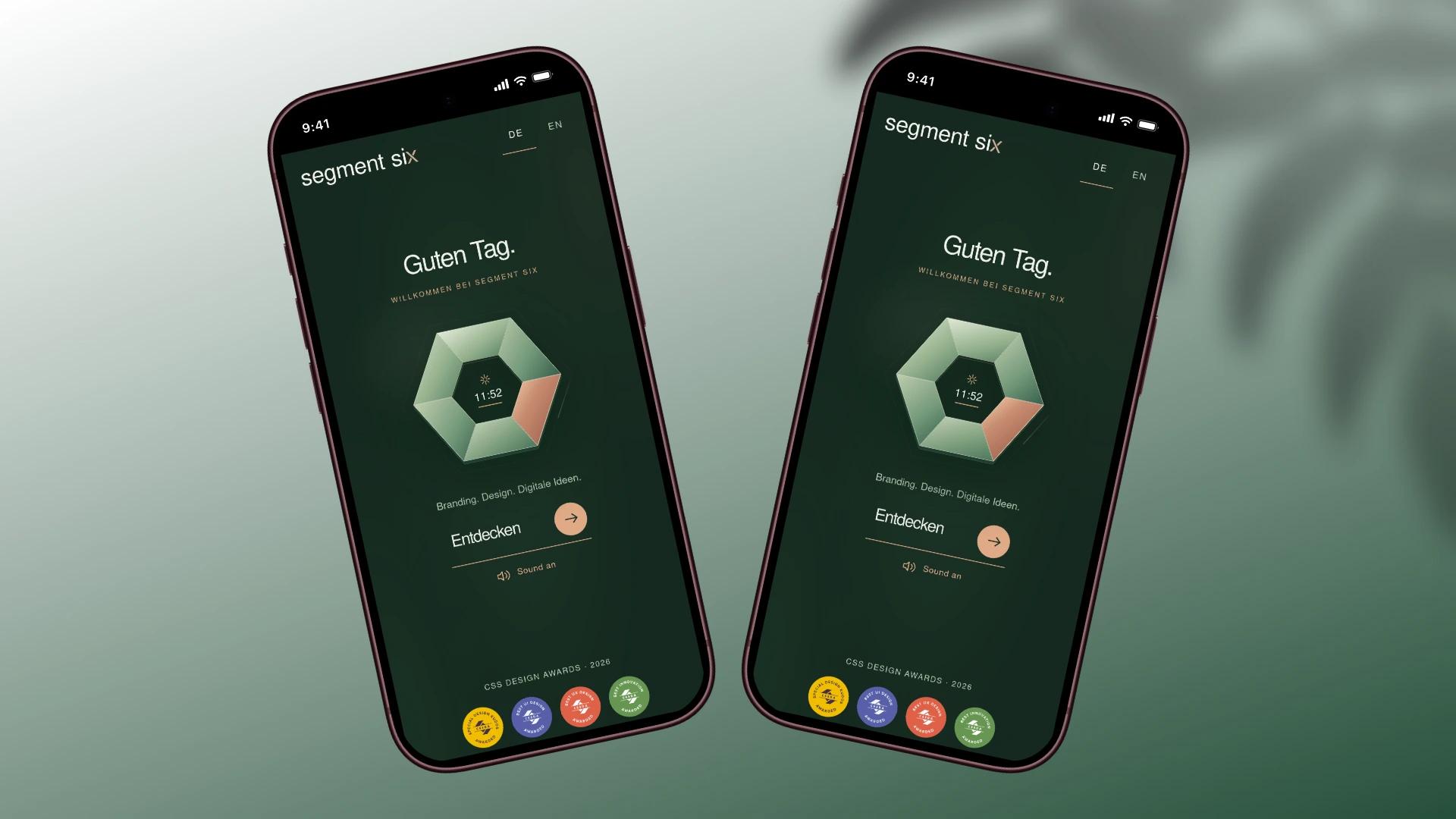
Mockship is a free iPhone screenshot mockup generator that runs in your browser. Drop in your app screenshot, pick an iPhone frame from the iPhone 15 to the iPhone 18 Pro Max, choose a finish, background and shadow, and export an HD image with no watermark and no signup.
This guide covers which iPhone models you can use, how to make a mockup step by step, and a few tips that keep the result sharp.
Which iPhone frames are included
Every frame below is free. The screen size is the phone's size in points, which is what the frame is built around.
| iPhone model | Screen (points) |
|---|---|
| iPhone 18 Pro | 402 × 874 |
| iPhone 18 Pro Max | 440 × 956 |
| iPhone 17 | 402 × 874 |
| iPhone 17 Pro | 402 × 874 |
| iPhone 17 Pro Max | 440 × 956 |
| iPhone 17 Air | 420 × 912 |
| iPhone 16 Pro | 402 × 874 |
| iPhone 16 Pro Max | 440 × 956 |
| iPhone 15 | 393 × 852 |
| iPhone 15 Pro | 393 × 852 |
| iPhone 15 Pro Max | 430 × 932 |

How to make an iPhone screenshot mockup
- 1
Open the iPhone mockup
Open the iPhone 18 Pro mockup, or any model from the device mockups page. There is nothing to install and no account to create.
- 2
Drop in your screenshot
Drag your screenshot onto the canvas or paste it from your clipboard. It fills the iPhone screen with rounded corners that match the frame.
- 3
Pick the model and finish
Switch between iPhone models and finishes in the right panel. Pick the one your audience uses, or a finish that suits your brand colors.
- 4
Set the status bar
Turn the status bar on or off, and make it light or dark so the time and icons read on your app's top color.
- 5
Style it and export
Add a background, a shadow and a layout, then export an HD PNG or JPEG for free with no watermark.

Tips for a sharp iPhone mockup
Use a screenshot at phone resolution
A screenshot taken on an iPhone, or exported at a size like 1179 × 2556, fills the screen exactly and stays crisp at any export size.
Avoid two status bars
If your screenshot already shows the time and battery, turn Mockship's status bar off so they don't stack.
Match the canvas to where it goes
Use the App Store canvas, 1290 × 2796, for store listings, or a square or 4:5 canvas for social posts.
Show more than one screen
For a whole flow, use Phone Grid to line up several screens in iPhone frames in one image.

What's free and what Pro adds
Every iPhone frame, the status bar, backgrounds, shadows, layouts and HD export in PNG or JPEG are free, with no watermark. Pro is optional and adds 4K and 6K export, WebP, share links, premium backdrops and templates.
Want the newest phone in particular? The iPhone 18 mockup guide covers the iPhone 18 Pro and Pro Max and their finishes in more detail.
Frequently asked questions
Related tools and use cases
Tags
Share
More from the blog
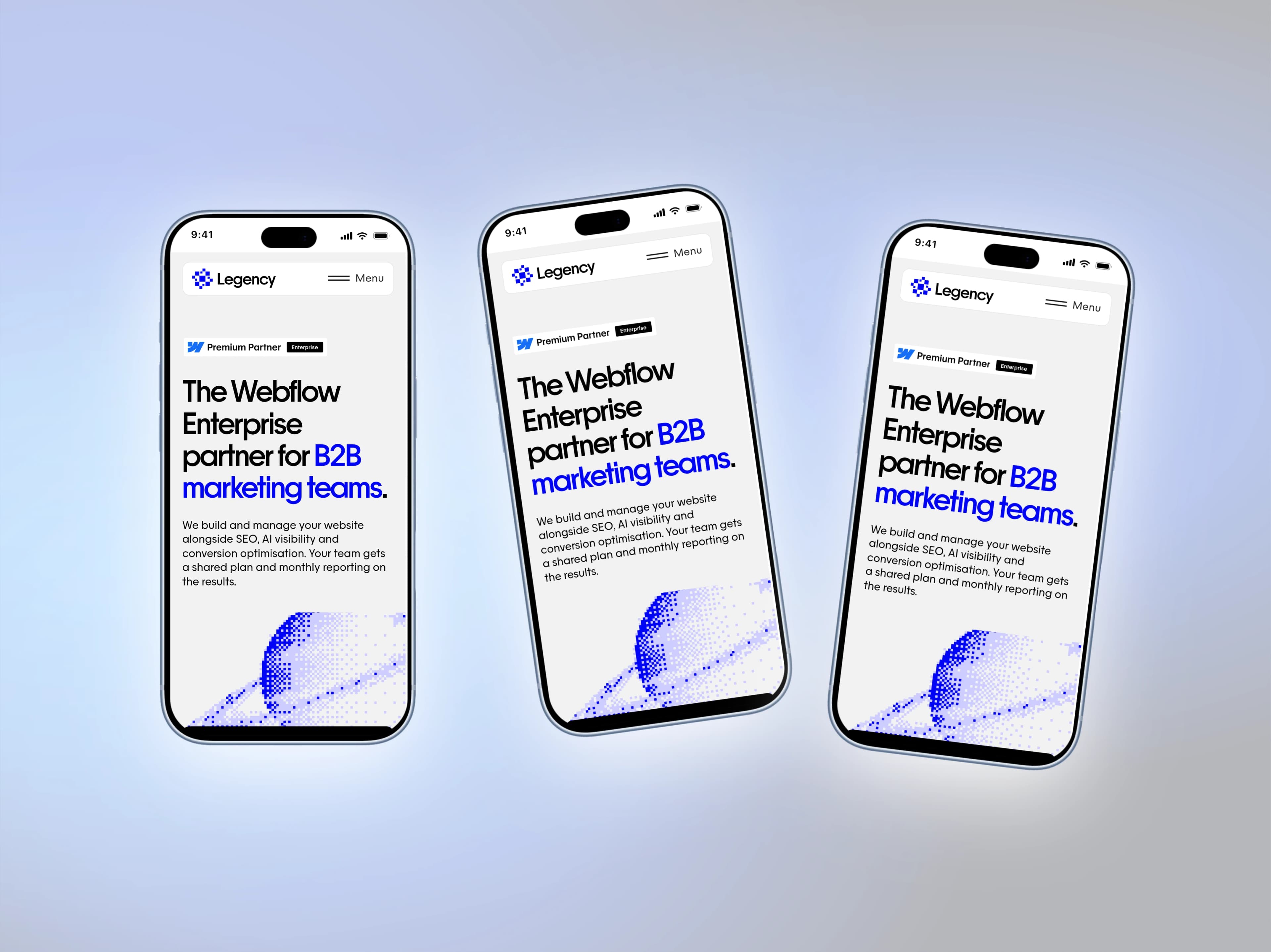
iPhone 18 Pro and Pro Max Mockups for Your App Screenshots
Mockship now has the iPhone 18 Pro and iPhone 18 Pro Max, in four finishes, so your mobile screenshots can sit in this year's phone the day you need them.
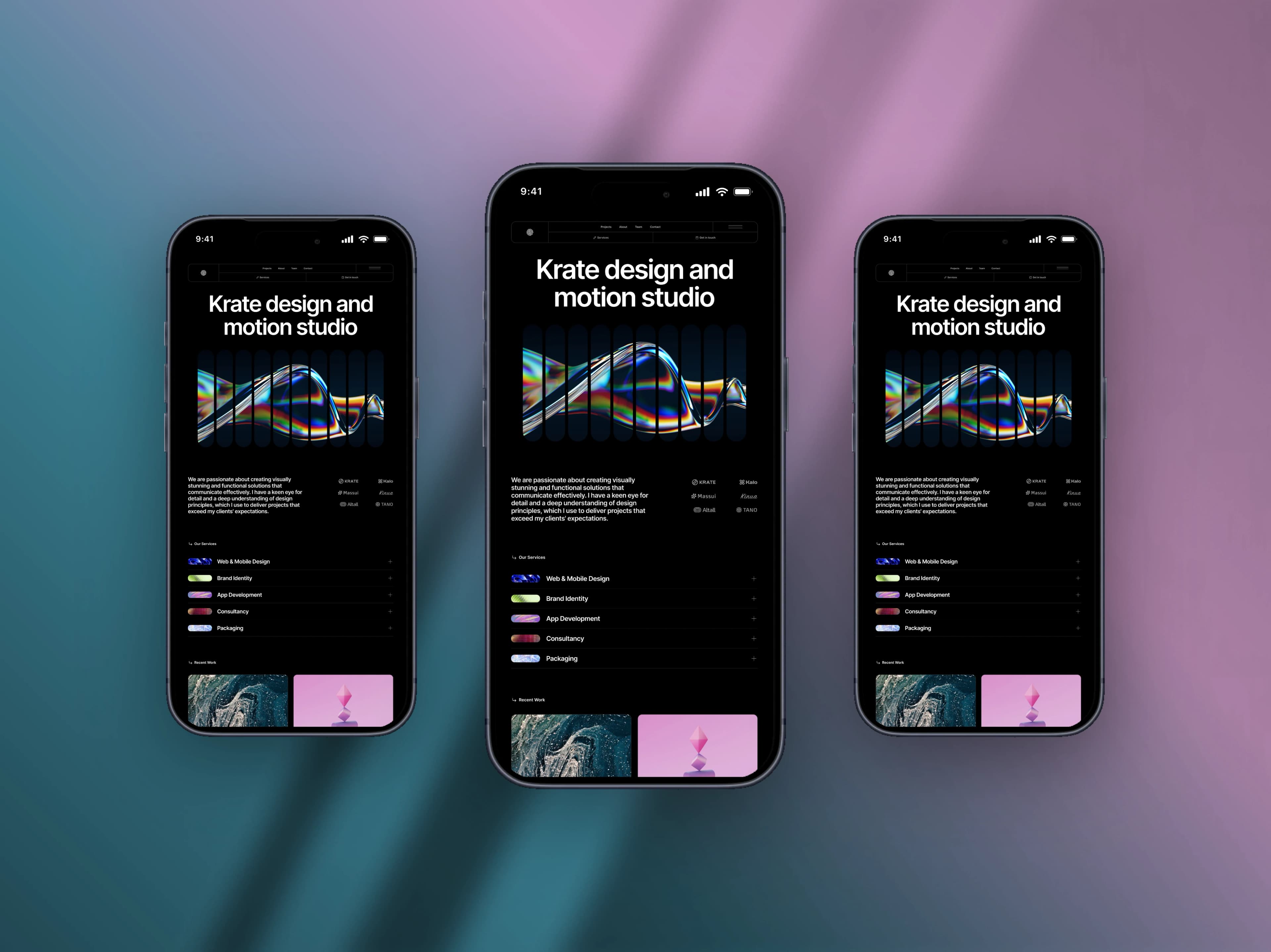
How to Create a Mobile Mockup for Free
Turn a plain phone screenshot into a post worth showing — a real device frame, a backdrop that matches, and the right canvas for the feed.

Screenshot Mockup Generator With No Watermark
Make device, browser and grid mockups from your screenshots and export them free, with no watermark and no signup. Here is what you get, what Pro adds, and which tools stamp a logo.